

Documents have attributes likeDocumentation Index
Fetch the complete documentation index at: https://gusto-preview.mintlify.app/llms.txt
Use this file to discover all available pages before exploring further.
pages and fields, unlike forms (for information on forms, consult Contractor forms).
Users can get a contractor’s documents, get an individual document, retrieve the PDF for a document, and sign a document.
1. Retrieve a document
Get all documents for a contractor
Retrieve a contractor’s documents using the GET /v1/contractors/{{contractor_uuid}}/documents endpoint. Sample response In this sample response, the document in the returned array is unsigned, asrequires_signing is true and the pages and fields attributes are returned:
Use “pages” and “fields” for signing preparation
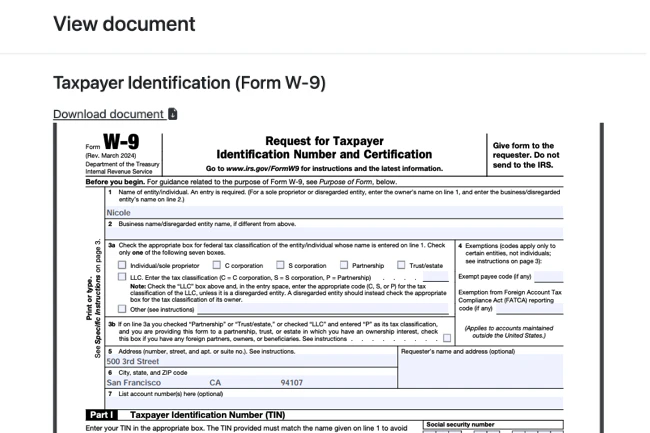
Thepages and fields attributes are intended for signing preparation, and aren’t returned for signed documented.Example usage: a document’s pages can be rendered using with the image_urls, and the field values can be used to autofill certain fields on a signing form.Get a specific document
Retrieve a specific document with the GET /v1/documents/{{document_uuid}} endpoint. Sample response (signed document) This sample response shows a signed document, asrequires_signing is false and the pages and fields attributes are not returned:
2. Sign a document
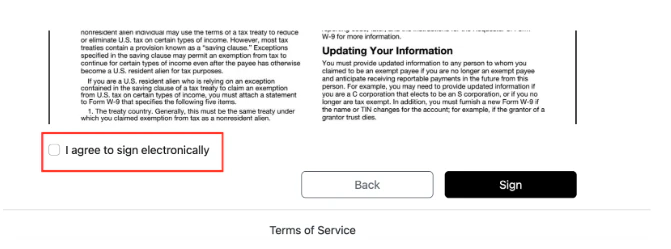
Sign a contractor W-9 form using the PUT /v1/documents/{{document_uuid}}/sign endpoint, and doing the following:- Passing in
values for the"name"and"signature_text"keys. - Agree to sign the form electronically with
"agree": true - Pass in the signatory’s valid IP address with
signed_by_ip_address
signed_at will now include the timestamp of when the document was signed, and the requires_signing attribute will be false. The response will no longer include pages and fields.
3. Get the PDF for a document
Retrieve a document’s pdf with the GET /v1/documents/{{document_uuid}}/pdf. The PDF will be blank for unsigned documents and contain field data for signed documents.Contractor Documents Flow
1. Create a contractor via API call:
2. Generate the Contractor Documents Flow
Then, generate acontractor_documents flow with using the POST /v1/companies/{company_uuid}/flows endpoint, setting flow_type to contractor_documents and entity_type to Contractor.
Flow behavior (Employer view)
1. Locate the contractor document
Clicking on the title link will take you to a page where you can view/download the document. If you don’t want to sign the document through the flow, you can print out the document here and fill it out physically.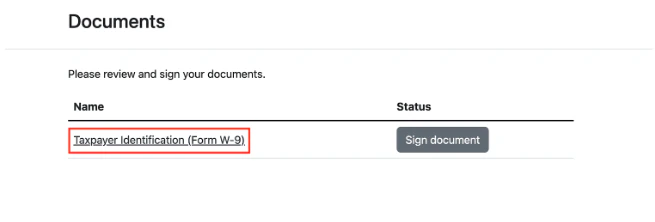
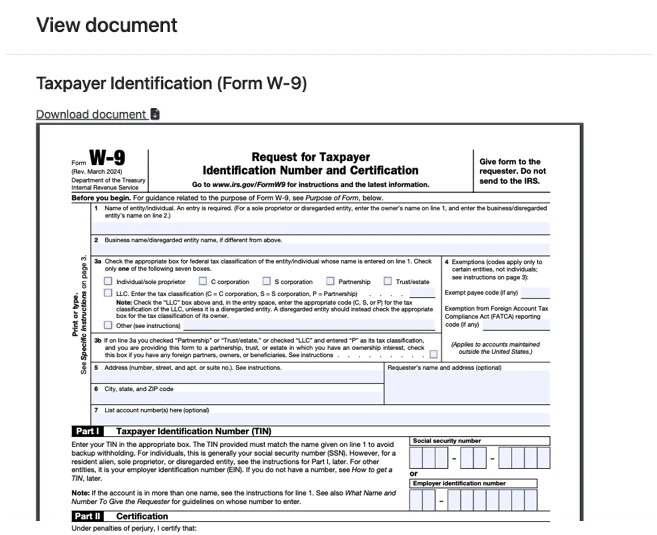
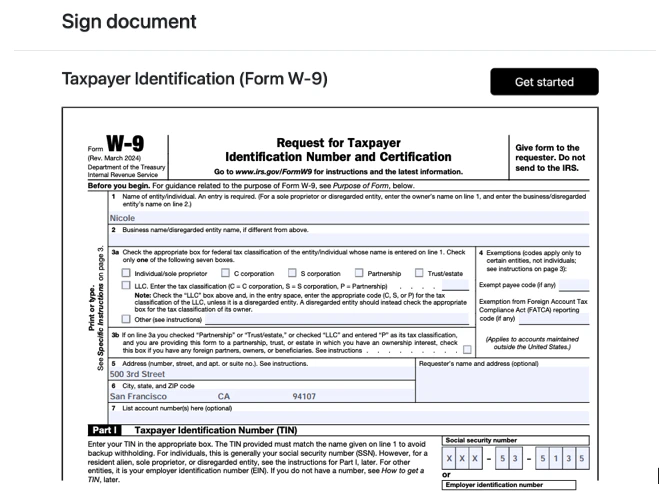
2. Sign document
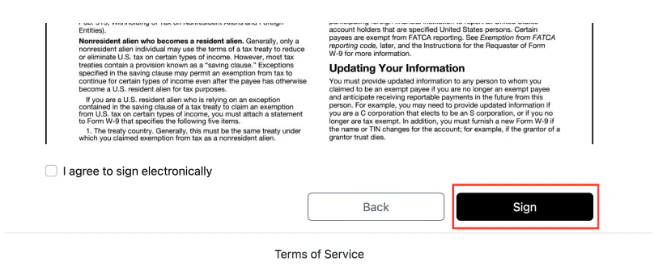
To sign the page, either hit the Sign button from the view/download page, or hit Sign document from the title page.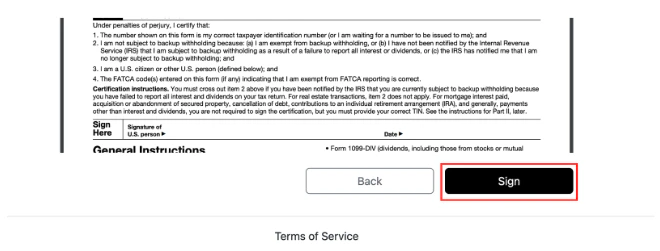
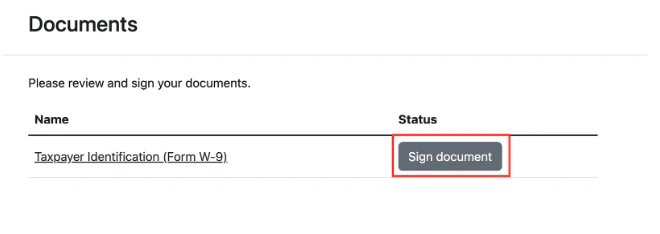
3. View/download signed document
After signing, you can hit the title link to view/download the document.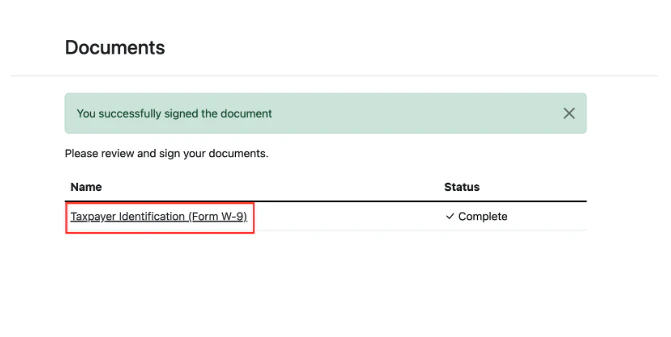
Contractor forms Time off policies