

We automatically pre-generate scheduled regular payrolls based on the company’s pay schedule and corresponding pay periods. Pay periods are the foundation of payroll. Compensation, time & attendance, taxes, and expense reports all rely on when they happened. Before using this guide you need a fully onboarded Company and Employee.Documentation Index
Fetch the complete documentation index at: https://gusto-preview.mintlify.app/llms.txt
Use this file to discover all available pages before exploring further.
1. Retrieve Upcoming Payroll
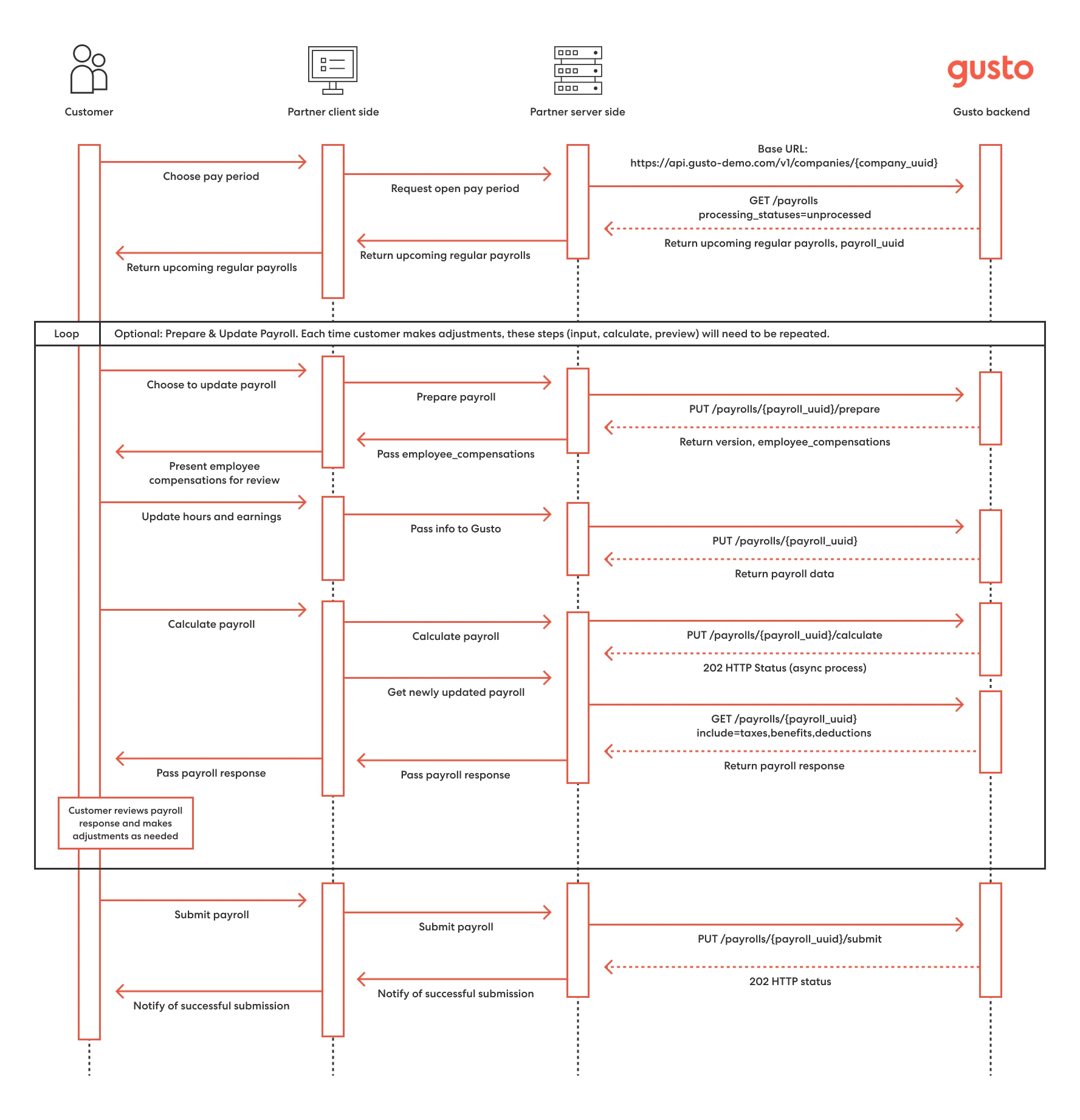
Upcoming regular payrolls can be retrieved using theGET companies/{company_uuid}/payrolls?processing_statuses=unprocessed endpoint, which has a maximum page size of 100 payrolls. The next upcoming payroll will be the earliest unprocessed payroll. By default, the payrolls#index endpoint will return only processed payrolls so make sure to add the processing_statuses=unprocessed query param. You can use the optional query parameters start_date & end_date to narrow or expand the response.
The example cURL below is filtering to show unprocessed payrolls, including off cycle, the dates for payroll is between 2021-02-01 and 2021-03-01. To see all query values review our API Reference.
2. Prepare & Update Payroll (Optional)
If there is information about the payroll that needs to be updated, start by using thePUT companies/{company_uuid}/payrolls/{payroll_uuid}/prepare endpoint. This endpoint will return the version and the employee_compensations data you need to update a payroll.
You can update Regular Hours, Overtime, and Double overtime for Salaried Nonexempt employees, but only Regular Hours can be updated for Exempt employees since they are not eligible for overtime.
New in v2025-06-15 thePUT companies/{company_uuid}/payrolls/{payroll_uuid}/prepare endpoint:
- Automatically paginates the number of employee compensations returned with each request
- Accepts the pagination parameters of
page(defaults to 1) andper(defaults to 25) - Returns a maximum of 100 employee compensations
PUT companies/{company_uuid}/payrolls/{payroll_uuid} endpoint, passing in the updated employee_compensations params from the prepare endpoint, as in the example request below.
New in v2025-06-15: The PUT companies/{company_uuid}/payrolls/{payroll_uuid} endpoint limits the number of employee compensations you can include in the request body to 100. In addition, the response will only include the employee compensations included in the request body, rather than the full payroll response.
Here’s a sample request to the update payroll endpoint:
3. Calculate the Payroll
Once a payroll is updated, use thePUT companies/{company_id}/payrolls/{payroll_id}/calculate endpoint to calculate the taxes, benefits, and deductions for the unprocessed payroll. The calculated payroll details provide a preview of the actual values that will be used when the payroll is run. Any benefits or deductions - mandatory or voluntary - that are set up for the employee at the time payroll is calculated will automatically be factored in.
This calculation is asynchronous and a successful request responds with a 202 HTTP status.
GET /v1/companies/{company_uuid}/payrolls/{payroll_uuid} endpoint with theinclude=taxes,benefits,deductions param, until the payroll returns with the calculated_at field populated with a timestamp. The payroll will include any submission_blockers and will also return a totals attribute once it is calculated.
New in v2025-06-15 The GET /v1/companies/{company_uuid}/payrolls/{payroll_uuid} endpoint:
- Automatically paginates the number of employee compensations returned with each request
- Accepts the pagination parameters of
page(defaults to 1) andper(defaults to 25) - Returns a maximum of 100 employee compensations
PUT companies/{company_uuid}/payrolls/{payroll_uuid}/prepare endpoint again, which will cancel out the calculations and return the payroll version used for updates.
4. Submit Payroll
Preview UI
We recommend building a UI where the user can review their payroll before submitting. The displayed information can be customized to fit your unique business needs, but we highly recommend a preview step to provide the user with the payroll details before they finalize it. Typically this includes a breakdown of total payroll, taxes, and debits.PUT companies/{company_uuid}/payrolls/{payroll_uuid}/submit endpoint. Upon success, this request transitions the payroll to the processed state and initiates the transfer of funds. This is a critical step to process payroll. A payroll is not finalized without calling this endpoint.
This submission is asynchronous and a successful request responds with a 202 HTTP status. Upon success, the payroll status transitions to the processed state. You should poll to ensure that payroll is processed successfully, as async errors only occur after async processing is complete.
5. Receive Payroll Receipts and Paystubs
Once a payroll is submitted, we recommend including a summary of the payroll for the end user to view the debit date, check date, and payroll details. The payroll receipt should also be available on this final step. See Payroll Receipts for more information. You can retrieve Payroll Receipt using theGET payrolls/{payroll_uuid}/receipt endpoint.
You can retrieve a W2 Employee’s Paystub using the GET payrolls/{payroll_id}/employees/{employee_id}/pay_stub endpoint.
You can also use the pre-built UI Flow for a payroll receipt.
Architecture Diagram
Calculate An Employee’s Gross Wage Payroll Statuses